OpenID Connect (OIDC)
- Introduction
- Supported Identity Providers
- Prerequisites
- Set Up Service Discovery
- Access Token Audience
- General Example Setup
- Example Setup Using Kopano Konnect
- Example Setup Using Microsoft Azure AD
- Example Setup Using OneLogin
- ownCloud Desktop and Mobile Clients
- Migrate Web Login (and Client Login) from SAML to OIDC
Introduction
OpenID Connect is an open standard for single sign-on, identity and access management. With ownCloud it can be used for user authentication and client authorization against an external identity provider(IdP).
Benefits of using ownCloud with OpenID Connect
-
Increased security by shifting user authentication to an external identity provider.
-
Seamless integration into single sign-on (SSO) environments as well as with third party products.
-
Centralized client management within the identity provider.
-
Enterprise-grade security through the use of authentication security features (e.g., multi-factor authentication) and policies (e.g., automatic token expiration on certain conditions) provided by identity providers.
| ownCloud only supports one configured identity provider which is then valid for all requests. |
Click on the OAuth code flow sequence diagram link to get more details on the flow sequence.
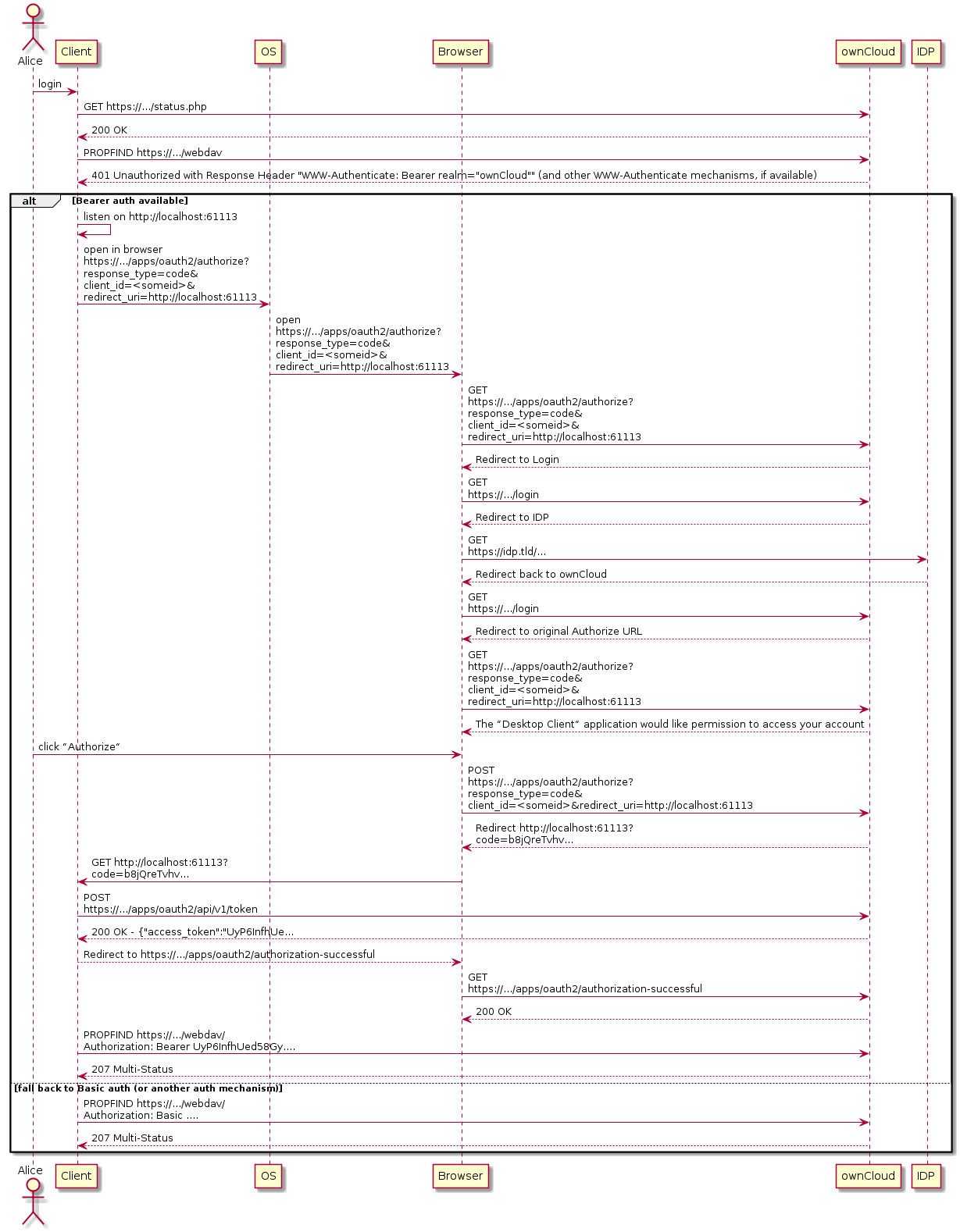
Supported Identity Providers
ownCloud Classic can work with identity providers (IdP) that support OpenID Connect. There are many identity providers available and the OpenID Connect implementations vary a lot in terms of supported features as well as configuration needs.
The currently supported products are
(1) … Note that ADFS does not support client-secrets that contain an _ (underscore).
Please get in touch with ownCloud Consulting if you need help with a specific identity provider product.
Prerequisites
Setting up ownCloud Classic to work with OpenID Connect requires a couple of components to work together:
-
An external identity provider configured to work with the ownCloud components
-
A distributed memcache setup - such as Redis or Memcached - is required to operate this app. Follow the caching documentation on how to set it up.
-
The OpenID Connect App installed on ownCloud Classic
-
Configuration settings in
config.phpon ownCloud Classic-
'http.cookie.samesite' => 'None',See config.sample.php and Schemeful Same-Site for examples and details.
-
Settings for the OpenID Connect App
See config.apps.sample.php for examples and details or see section Save Settings in the Database below when running clustered setups.
-
-
Service discovery for the ownCloud Clients
Save Settings in the Database
If you run a clustered setup, the following method configuring the OpenID Connect app is preferred, because it is stateless. The app checks for settings in the database first. If none are found, it falls back to the settings stored in config.php. The settings are stored as a JSON formatted string with the following keys and values:
| Key | Value |
|---|---|
appid |
'openidconnect' |
configkey |
'openid-connect' |
configvalue |
JSON-String |
If a malformed JSON string is found, an error is logged. The key→value pairs are the same as when storing them to the config.php file. This task has to be done by invoking an occ command, see the following example. Use the occ commands config:app:get to view the current setting or config:app:delete to delete it. See the Config Command Set for more details.
sudo -u www-data ./occ config:app:set \
    openidconnect \
    openid-connect \
--value='{"provider-url":"https:\/\/idp.example.net","client-id":"fc9b5c78-ec73-47bf-befc-59d4fe780f6f","client-secret":"e3e5b04a-3c3c-4f4d-b16c-2a6e9fdd3cd1","loginButtonName":"Login via OpenId Connect"}'| Only set either the database or the config.php keys but not both for the OpenID Connect app. |
Set Up Service Discovery
-
Webserver Service Discovery Information
In order to allow the ownCloud Clients (Desktop/Android/iOS) to make use of OpenID Connect, the webserver serving ownCloud Classic needs to provide service discovery information under the following static path:
https://cloud.example.com/.well-known/openid-configuration -
App Service Discovery Information
When enabled, the OpenID Connect App provides the service discovery information on the endpoint:
https://cloud.example.com/index.php/apps/openidconnect/config -
Webserver Rewrite Rule
To make the endpoint available under the static service discovery path, it is recommended to put a
RewriteRulein place using in theVirtualHostsection. The Apache modulerewritemust be enabled, and if SSL is used, also the modulesproxy,proxy_httpandproxy_connect:RewriteEngine on RewriteRule "^/.well-known/openid-configuration" "/index.php/apps/openidconnect/config" [P] SSLProxyEngine On #This can be omitted if no SSL is usedDepending on the respective infrastructure setup there can be other ways to solve this. In any case, please make sure not to use redirect rules as this will violate the OpenID Connect specification. If you use the .htaccessfile in the ownCloud web root, you have to manually add that rewrite rule again after any ownCloud upgrade. -
Once service discovery is available as described above, the ownCloud clients will attempt to connect via OpenID Connect.
Access Token Audience
An access token is accepted only if it names ownCloud. On this server line that check arrives with openidconnect 2.3.5, which is in preparation:
-
every released version up to and including 2.3.4 does not check the audience at all;
-
2.3.5 accepts a token whose
aud(audience) claim carries the configuredclient-id, or whoseazp,appidorclient_idclaim does, and adds theaudienceparameter for declaring what your provider really puts inaud.audis compared first and a match there ends the check; the three client claims are the fallback for when it does not match, and only the most authoritative one the token actually carries is consulted, in that order - so a token that reaches the fallback with anazpnaming a different client is refused even when it also carries aclient_idnaming ownCloud. It checks both JWT access tokens and opaque ones verified through a token introspection endpoint, where the response’sclient_idcounts the same way.
Both halves therefore arrive together here, which is why the upgrade needs no configuration change
for any provider whose shape is known - see the table. Four shapes it does lock out, and
audience is not the way out of any of them. Three are beyond its reach entirely: an
introspection response carrying neither aud nor client_id, which RFC 7662 permits; an
access token labelled with a typ or token_use value that is not on the allowlist below;
and a JWT access token with no usable exp claim, refused with Access token has no
expiry. The fourth - a token whose most authoritative client claim names something other
than the client-id, even where a lower-precedence one names it - would change with
audience, because setting it turns the client claims off and leaves aud to decide. Do
not use it for that: there is nothing to set for a provider that sends no aud at all, and
where there is, the value that makes such a token pass is one that other clients of the
same provider can be issued for - which is the cross-client acceptance the check exists to
stop. An access token’s aud identifies the
resource server the token was minted for (RFC 9068 section 3), not the client that asked for it,
so many providers never put the ownCloud client-id there; accepting the client-naming claim is
what keeps those working.
|
The ownCloud 11 line got the two halves in separate releases: openidconnect 2.4.1 checks the
audience and has no way to override it, so a provider that does not put the |
| Identity provider | What lands in the access token’s aud |
On openidconnect 2.3.4 and earlier | On openidconnect 2.3.5 |
|---|---|---|---|
Keycloak 1 |
Nothing - there is no |
Works as it is - the audience is not checked. |
Works as it is. |
Microsoft Azure AD / Entra ID, v1.0 tokens 2 |
The Application ID URI, for example |
Works as it is - the audience is not checked. |
Works as it is. Set |
Microsoft Azure AD / Entra ID, v2.0 tokens 2 |
The resource application’s client id, which is ownCloud’s own |
Works as it is - the audience is not checked. |
Works as it is. |
Microsoft ADFS 2 |
The relying party identifier, rendered as |
Works as it is - the audience is not checked. |
Works as it is. Set |
Kopano Konnect 3 |
The client id. |
Works as it is - the audience is not checked. |
Works as it is. |
OneLogin, with API authorization 2 |
The configured API audience URI or URIs, never the client id. |
Works as it is - the audience is not checked. |
Works as it is. Set |
PingIdentity PingFederate, cidaas |
Depends on how the access token is configured in the product - not verified by ownCloud. |
Works as it is - the audience is not checked. |
Decode one access token: it works as it is if |
(1) Verified against Keycloak 26.0 with a confidential client and no audience mapper.
(2) From the provider’s own documentation and from tokens reported by administrators.
(3) From the Konnect sources, which pass the client id as the access token audience.
What the Log Says
A rejected audience is logged with both values:
Token audience does not match the expected audience: token "aud" is "...", expected one of ["..."]
The value reported as token "aud" is what your provider sends, and therefore exactly what
belongs in audience if you decide to set it - unless the line below precedes it:
Token was issued to another client: "azp" is "...", this relying party is "..." ...
From 2.3.5 that line says the rejection was decided by a client-naming claim rather than by the
audience, so audience is not what needs changing: the token genuinely belongs to another client
of the same provider. It is followed by the audience mismatch above, which in that case names an
aud that was never the problem.
From 2.3.5, a token accepted on its client-naming claim while carrying an audience you could
have configured - Azure AD v1.0 tokens, ADFS, OneLogin - is recorded at level info, once per
request, with the same advice. ownCloud’s default loglevel is 2 (warning), so set it to 1
(info) to see it at all:
Access token "aud" does not name this relying party, accepted because "appid" matches the
configured client-id. To have the audience enforced, set the openid-connect "audience" config
key to ...
That line is expected for those providers and does not indicate a broken setup; setting
audience is what ends it. It is not written when the token carries no audience at all, as with
Keycloak, because then there is nothing to put in the key - such a token is still accepted on its
azp claim, unless audience is configured, in which case it is rejected and logged as a
mismatch like any other.
Independently of the audience, and from 2.3.5, a token that labels its own type has to label
itself an access token, or it is refused with Token is not an access token. Both the typ and
the token_use payload claims count as that label, and each one the token carries has to be an
accepted value - the accepted values, compared case-insensitively, being Bearer, at+jwt
(RFC 9068 section 2.1), access and access_token. A token carrying typ: JWT alongside
token_use: access is therefore refused on the typ. That is an allowlist rather than a list of refresh markers, so it
covers refresh and offline tokens (Keycloak’s typ of Refresh and Offline, Cognito’s
token_use of refresh) together with back-channel logout, registration and ID tokens on every
provider that labels them. The generic JOSE media type jwt is refused too, although it says
nothing about the type: a provider that stamps it into the payload stamps it on every token it
signs, so accepting it would switch this check off for precisely the provider it would be meant to
accommodate.
ID tokens are therefore two cases rather than one. Where your provider labels the type - Keycloak
sends typ of ID, Cognito token_use of id - an ID token presented as a bearer token is
refused whatever audience is set to, including not set at all. Where it puts no type claim in the
payload, as Azure AD and ADFS do not, an ID token still satisfies the default expectation,
because an ID token’s aud is the client-id by definition: it is
accepted for as long as the client-id is an accepted audience, and setting audience to anything
else - which is exactly what ADFS, Azure AD v1.0 tokens and OneLogin need - is then what rejects it,
as a side effect. Where that is not an option, treat ID tokens as credentials.
When to Set the audience Parameter
None of the providers above needs it on 2.3.5, with the one exception noted in the table. What it adds is a binding to the
resource: with it set, a token that ownCloud’s own client obtained for some other resource of
the same provider - through an RFC 8707 resource parameter, or RFC 8693 token exchange - no
longer authenticates here. Set it if your provider issues tokens to ownCloud’s client for more
than one resource.
What it cannot do is keep another client’s tokens out. Any token whose aud names ownCloud is
accepted, whichever client requested it, and a client of the same provider can often be granted
exactly that - an audience mapper of its own, or a resource parameter naming ownCloud. That is
the resource-server model, it is the same before and after setting audience, and the only place
to control it is the provider: decide there which clients may be issued tokens for ownCloud.
See the parameter reference for the exact semantics of the key.
Making Keycloak Send an Audience
Keycloak leaves aud out of the access token unless the client has an audience mapper. Adding one
makes Keycloak send the client id. Nothing on this server line requires it: no released version
checks the audience, and 2.3.5 accepts Keycloak’s azp without a mapper. Add it only if you want
to set audience afterwards and have the audience enforced.
In the Keycloak admin console, go to and open
the dedicated scope named <client-id>-dedicated, then
and set Included Client Audience to your ownCloud
client, leaving Add to access token on.
The same through kcadm.sh, with CLIENT_UUID the internal id from
kcadm.sh get clients -r <realm> -q clientId=<client-id> --fields id:
kcadm.sh create clients/CLIENT_UUID/protocol-mappers/models -r <realm> \
  -s name=oc-audience \
  -s protocol=openid-connect \
  -s protocolMapper=oidc-audience-mapper \
  -s 'config."included.client.audience"=<client-id>' \
  -s 'config."access.token.claim"=true'
Afterwards the access token carries "aud": "<client-id>", and audience may be set to the same
value to have it enforced.
General Example Setup
All IdPs have their own setup, but often share common ways of configuring things. Although not identical, the Kopano Konnect example may be a good starting point for the specific configuration of your setup. As Microsoft with Azure AD is different, it has its own example section.
Example Setup Using Kopano Konnect
Follow this link to see Example Setup Using Kopano Konnect.
Example Setup Using Microsoft Azure AD
Follow this link to see Example Setup Using Microsoft Azure AD.
Example Setup Using OneLogin
Follow this link to see Example Setup Using OneLogin.
ownCloud Desktop and Mobile Clients
ownCloud desktop and mobile clients detect whether OIDC is available (service discovery) and use this login method when a new account is created.
| The desktop and mobile apps (clients) have a default client ID and secret hard-coded, which are used for ownCloud’s oauth2 app. When using Kopano as IdP, it does not pre-define a client ID and secret. You can use the default ones of the client to configure Kopano properly. With some IdPs like MS-Azure, these and other required parameters come from the IdP and must be coded into the client. Note that each IdP has different requirements. Get in touch with ownCloud for a branding subscription to customize the clients according to your needs. |
Client Support for OIDC
| ownCloud Client | Release with OIDC support |
|---|---|
Desktop |
>= 2.7.0 |
Android |
>= 2.15 |
iOS |
>= 1.2 |
Client IDs, Secrets and Redirect URIs
All IdPs can use ownCloud’s default client IDs, secrets and redirect URIs with the exception of Microsoft Azure AD, which uses a different approach. Here is the data necessary for the configuration.
Client ID
| Source | Key |
|---|---|
Server/Web |
as specified in |
Desktop |
|
Android |
|
iOS |
|
Client Secret
| Source | Key |
|---|---|
Server/Web |
as specified in |
Desktop |
|
Android |
|
iOS |
|
Redirect URIs
| Source | Redirect URI 1 |
|---|---|
Desktop ≤ 2.8 |
|
Desktop ≥ 2.9 |
|
Android |
|
iOS |
|
(1) See the following note when using Microsoft Azure AD and 127.0.0.1 as redirect URI.
Default Scope and Prompt Parameters
ownCloud desktop and mobile apps come with default scope and prompt parameters. These parameters can be modified in custom branded builds. See the OIDC Authentication Request specs for more details about the parameters.
| Parameter | Default value |
|---|---|
|
|
|
|
Migrate Clients from Basic Authentication to OIDC
If your users are logged in to their desktop and mobile clients via basic authentication (username/password) against ownCloud Classic and you are not using OAuth2 to authorize the ownCloud clients, a migration to OIDC can be conducted as follows:
-
Make sure you have a working OIDC configuration based on the above sections.
-
Enable the OpenID Connect App.
-
Enable token-only authentication.
Once the OpenID Connect App is enabled, token-only authentication is enforced and service discovery is properly set up, the ownCloud clients will ask the users to re-authenticate. After a successful re-authentication, the migration is done.
To connect legacy clients, users have to generate special app passwords (tokens).
Migrate Clients from OAuth2 to OIDC
If you use OAuth2 for client authorization, a migration to OIDC can be conducted as follows:
-
Make sure you have a working configuration based on the above sections.
-
Enable the OpenID Connect App (while having the OAuth2 App still enabled).
-
Disable the OAuth2 App.
Once the OAuth2 App is disabled and service discovery is properly set up, the ownCloud Clients will ask the users to re-authenticate. After a successful re-authentication, the migration is done.